Connect existing cameras
Use ONVIF and RTSP
to connect compatible cameras and NVRs.
Get more value from your existing setup.

From workplaces to everyday life. You define what matters.
Choose a setting to explore what VISORA can help you monitor.
Use ONVIF and RTSP
to connect compatible cameras and NVRs.
Get more value from your existing setup.
Describe what you want to monitor in plain language.
Choose when and where to check,
and spot changes that deserve attention.
Review snapshots and available video linked to alerts.
Notify selected team members in the platform,
with evidence to review and a record of follow-up.
Capabilities
Bring device integration, video management, AI detection and alerts into one platform.
Make camera footage useful in your daily work,
with checks shaped around what matters to you.
 VISORAInterface exampleFactory · Work area
Natural-language detection
From workplace safety to store checks, shared spaces to pets at home. Describe your needs in plain language and choose the areas and times to monitor.
Hard hats, empty shelves, open doors or a resting pet. Create checks that reflect your setting and your priorities.
Choose a setting to see an example detection plan.
VISORA · Detection planInterface exampleAre people entering the work area wearing hard hats?
Are workers wearing high-visibility vests?
Are any objects blocking the designated access route?
Use a single image to check the current state, or a sequence of images to observe changes over time. Set the schedule, frequency and region of interest.
Detection runs on the server. Enabled plans keep running on schedule when you leave the live view or close your browser.
Review the actual input images and results before enabling a plan. No match, inconclusive results and analysis failures are shown separately.
One place to manage it all
Live views, device groups, recordings and alerts work together. Spend less time switching screens and more time understanding what needs attention.
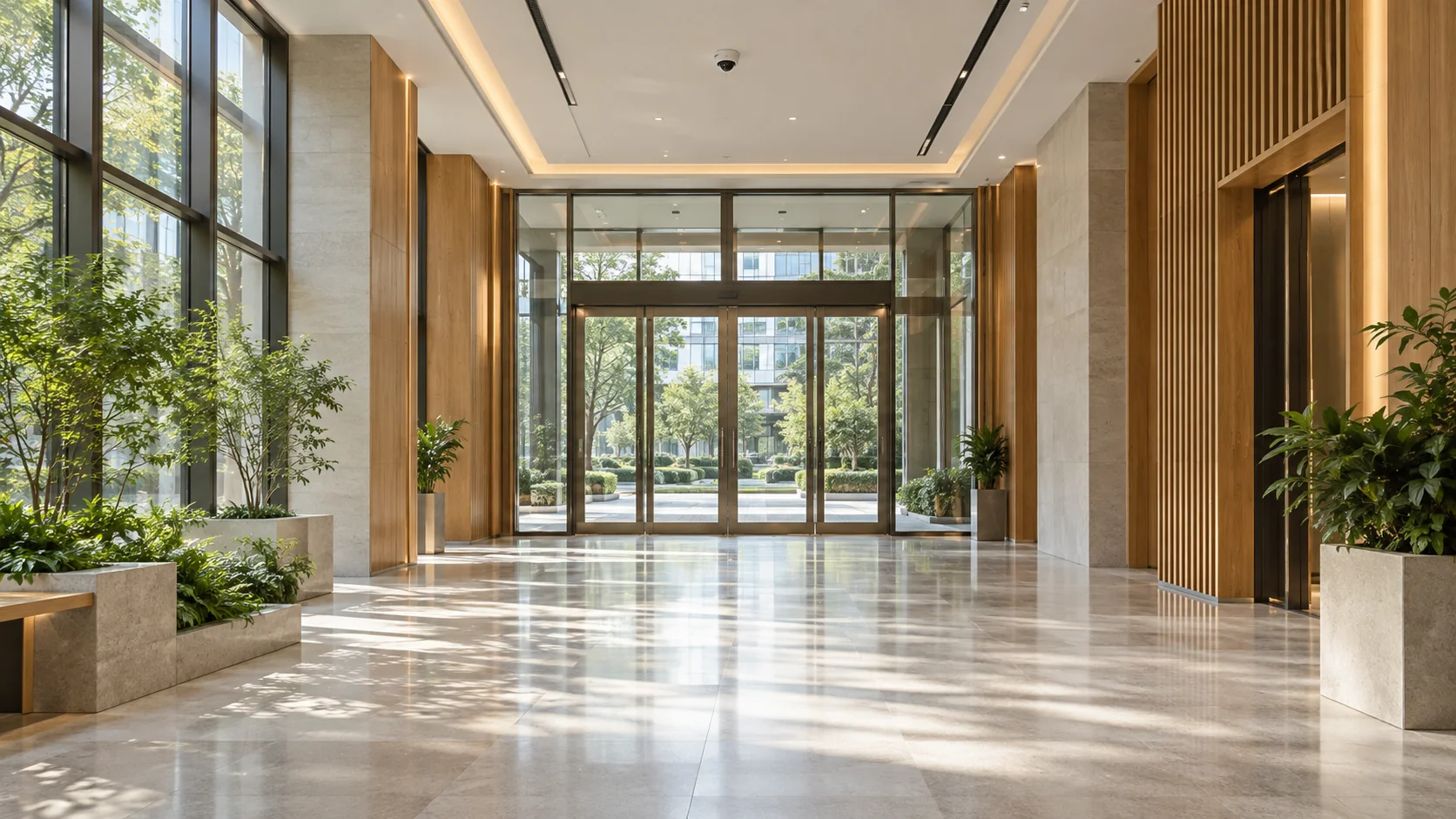 Building lobby · Entrance
Review the sampled image, analysis explanation and linked video. Authorized team members can assess the situation and record what happens next.
View 1, 4, 9 or 16 cameras at once. Find cameras by device or group and save your preferred viewing layouts.
Find recordings by channel and time. Review alert snapshots and video, and search SD card or NVR recordings on supported devices.
The first match triggers an alert; ongoing detections are grouped into an event. Acknowledge, resolve, mark false positives and add notes to keep a record of follow-up.
Organize devices by site, building or area. Give employees individual accounts and appropriate access, so information reaches the right people.
Use cases
Connect compatible cameras and describe what you want to check. Adapt your detection plans as your needs change.
01 / Industrial sitesObserve visible protective equipment, work areas and access routes to support routine safety checks.
View example checks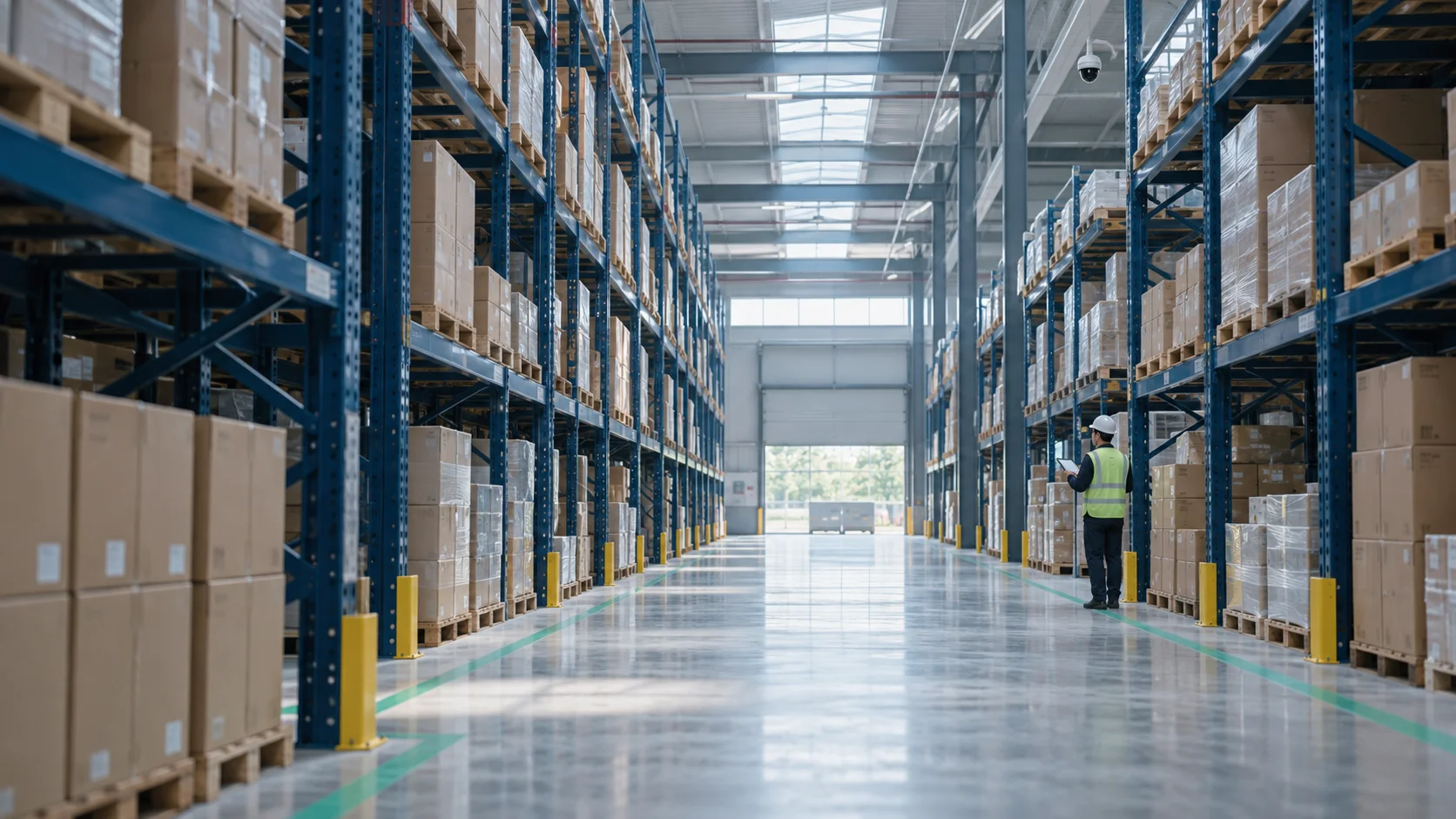 02 / Warehousing
Check for blocked aisles, misplaced goods and items outside their designated storage areas.
View example checks03 / Property managementCheck shared-area tidiness, door positions and emergency access routes for issues that need follow-up.
View example checks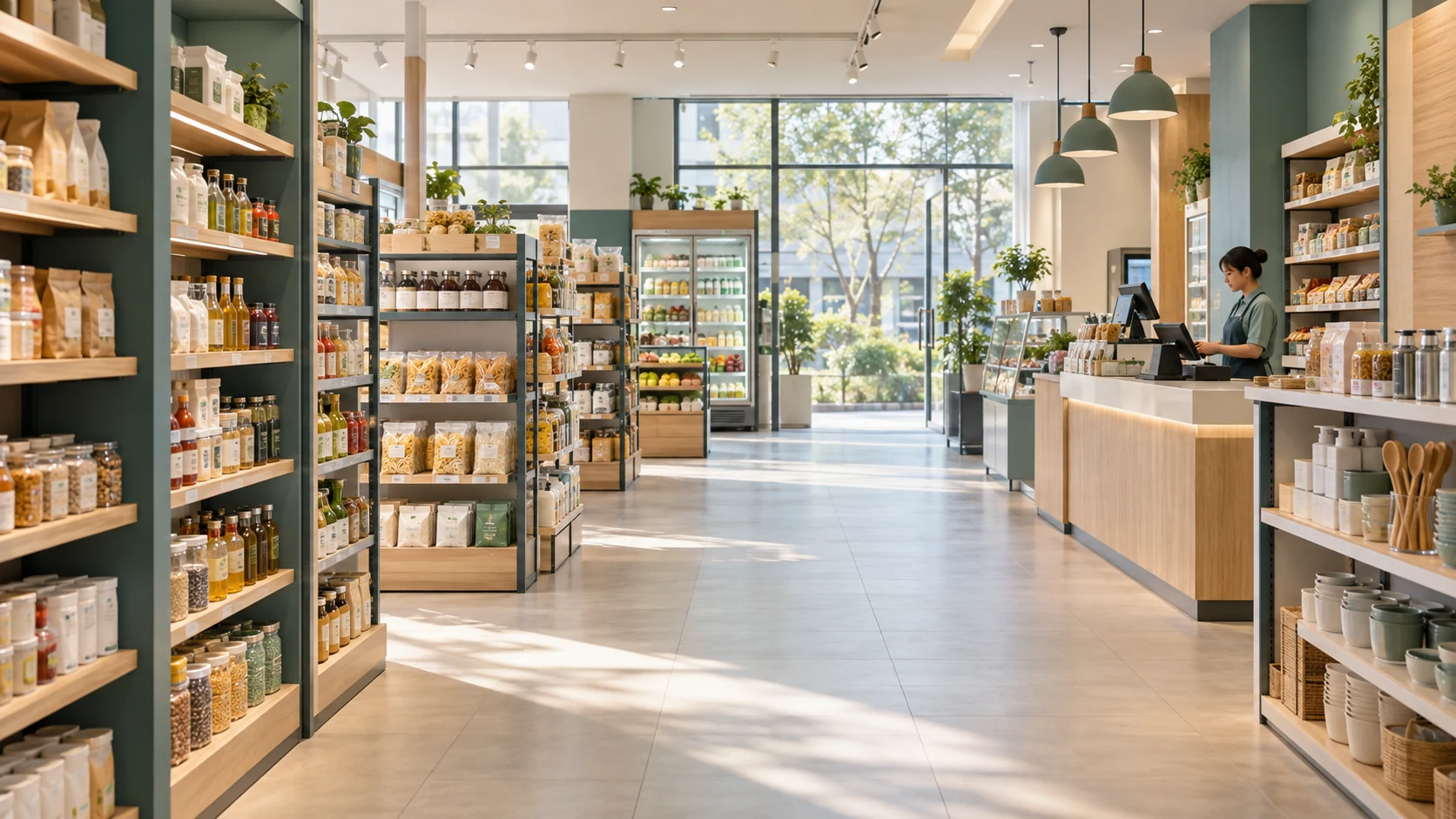 04 / Retail operations
Observe empty shelves, clear aisles and staffed work areas with checks tailored to your store.
View example checks 05 / Commercial kitchens
Observe visible staff attire, work surfaces and access routes to support day-to-day kitchen management.
View example checks 06 / Home & pets
From a resting pet to an open door, set checks around your daily routines without watching the feed all day.
View example checksScenes and checks are examples you can adapt. Test with footage from your own setting to assess actual results.
How it works
Connect compatible IP cameras and NVRs using ONVIF and RTSP.
Describe what to check, then select the cameras, regions of interest and schedule.
Analyze images on schedule. A match triggers an alert for selected users with the required access.
Review the evidence and record the action taken, from initial alert to resolution.
Deployment
Each customer has a separate deployment with their own devices, accounts and settings. Access it through the desktop client or a browser, with permissions tailored to administrators and employees.
Video management runs in your deployment. AI detection sends selected images to cloud vision services as needed.
Create checks for industrial sites, warehouses, shared buildings, shops, kitchens or your home. Describe an object, state or behavior in plain language, choose the cameras, areas and schedule, and test before enabling. Results depend on the footage and the task; every use case needs testing in its actual setting.
You may be able to use your existing equipment. VISORA supports ONVIF and RTSP integration. Compatibility and available features depend on the device model, firmware and protocol; devices from the same brand may differ.
AI sampling prioritizes direct snapshots. If a device cannot provide a suitable image, VISORA briefly pulls a video stream to capture one. Live viewing, image sequences and pre-event video may require streaming and buffering. Resource use depends on your configuration.
You can search and play SD card or NVR recordings on supported devices, as well as review alert evidence saved by VISORA. Device-side playback depends on the model, protocol and recording settings and should be verified with your equipment.
No. Lighting, occlusion, image quality and sampling intervals can affect results. Test with normal, abnormal and challenging footage from your setting. Alerts still need human review; inconclusive results and failed requests are reported separately.
Your deployment manages device settings, accounts, alert records and locally saved evidence. Images selected for AI analysis are sent to cloud vision services. Review the configuration and permitted use against your data requirements before deployment.
Find the right setup for you
Tell us about your cameras, your setting and what you want to detect.
Let's start with a conversation.
Include your device models, camera count and intended use in your email.